Google Play Feature Graphic: Size, Rules and Examples
The Google Play feature graphic is 1024 × 500 px, JPEG or 24-bit PNG. Where it shows, the design rules Google gives, and real examples that work.
· 5 min read
In this guide
Google Play won't publish an app without a feature graphic, yet it's often the last image a developer makes, quickly, the night before launch. It deserves more care than that. When Google Play plays your preview video or shows your app in one of its large promo cards, the feature graphic is the first thing people see.
Feature graphic size and format
| Requirement | |
|---|---|
| Size | 1024 × 500 px, exactly |
| Format | JPEG or 24-bit PNG |
| Transparency | Not allowed (no alpha channel) |
| Required | Yes, for every app and game |
| Alt text | Up to 140 characters, describing the image |
The most common upload error is a PNG that still has an alpha channel. If Play Console refuses your file, export it again as a JPEG, or as a PNG without transparency.
Where Google Play shows it
Google lists three places:
- As the cover of your preview video. A play button sits on top of it, and when the video doesn't autoplay, this is the image people tap.
- In large-format collections, including ads.
- In game recommendation groups that show videos and screenshots.
Notice what isn't on that list: the top of every store page. Years ago the feature graphic was a banner over every listing. Today it works as a video cover and a promo image. So if you have a preview video, your feature graphic is the first frame of your pitch. If you don't, it mostly appears when Google promotes your app, which is exactly when you want it to look good.
Google's design rules
These come from Google's own guidance for preview assets and its metadata policy:
- Keep the important parts near the center. Logo, app name, slogan and main visual stay away from the edges, because some placements crop them. Use the edges for background only.
- Use vivid colors. Google asks you to avoid pure white, black or dark gray, which blend into Google Play's own background.
- Make it different from your icon. The two often appear side by side, so a bigger copy of the icon wastes the space.
- Skip fine details. The graphic is often shown small. Thin lines and small text turn to mush.
- No phones or tablets. Google asks you to avoid device frames. Show your app's world or its screen directly.
- No badges and no claims. No Google Play or other store badges, no "Best", "#1", "New", "Free" or download counts, and no third-party logos you don't have permission to use.
- Translate the text for each language your store listing supports, and swap out seasonal art when the season ends. A Christmas graphic in February makes an app look abandoned.
Leave room for the play button
When you add a preview video, Google Play puts a play button on your feature graphic. Google doesn't publish its exact size, so test it yourself: draw a round button in the middle of your graphic and check that nothing important hides behind it.
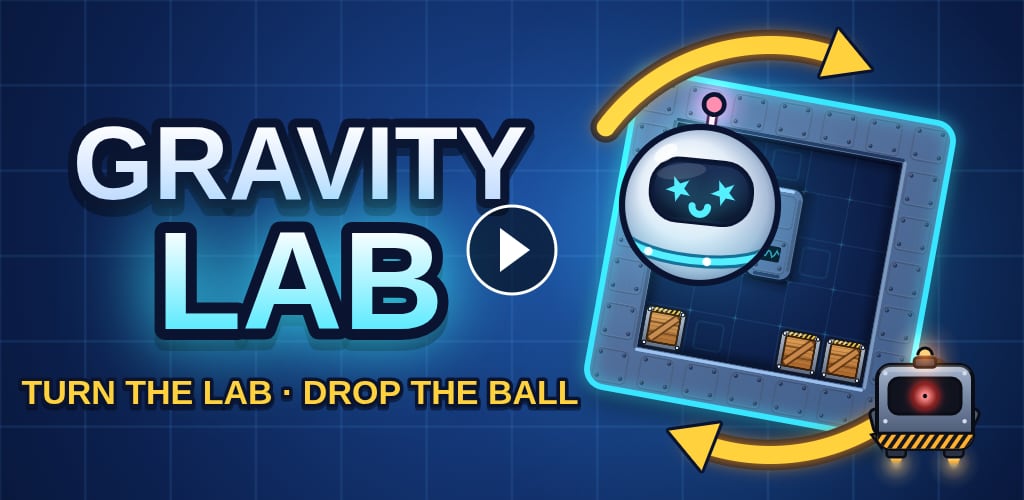 With a play button in the middle, Gravity Lab's name and robot both stay visible.
Four examples that work
All four come from small games on Google Play, and each does one thing well.
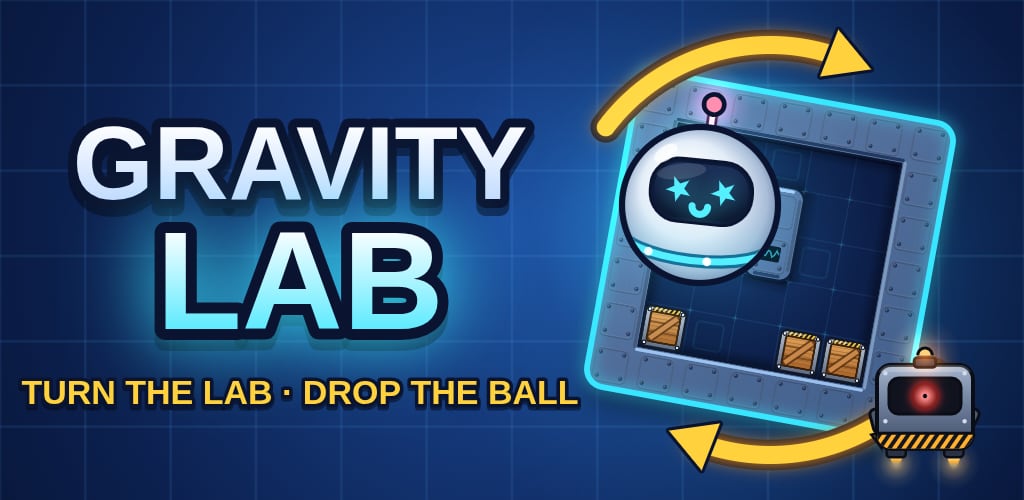 Gravity Lab: the whole mechanic in five words.
Gravity Lab puts the name on the left and a tilted level with its robot on the right, with arrows showing the rotation. The tagline "Turn the lab · drop the ball" explains the game before anyone reads the description.
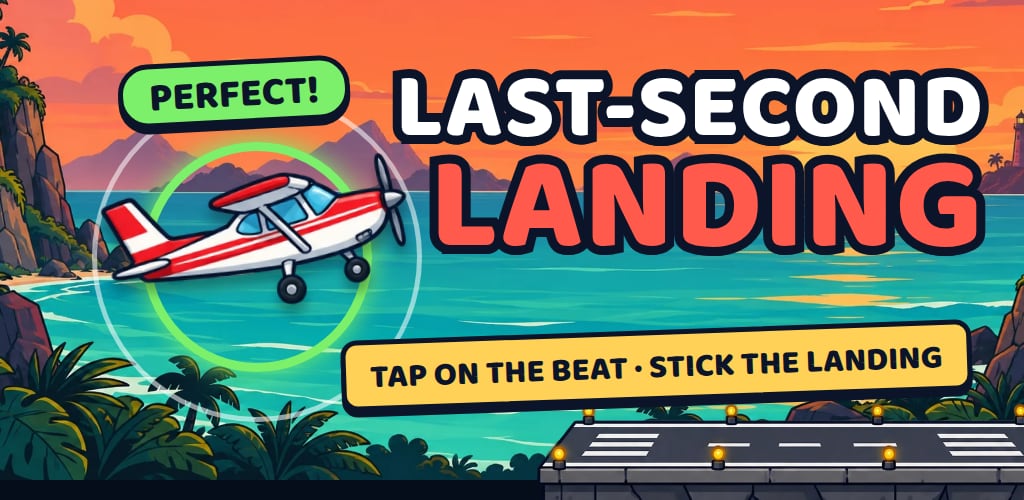 Last-Second Landing: one moment of play, frozen.
Last-Second Landing shows a single moment of gameplay: the plane, the timing ring and the "Perfect!" you get for nailing it. The tagline names the action: tap on the beat, stick the landing.
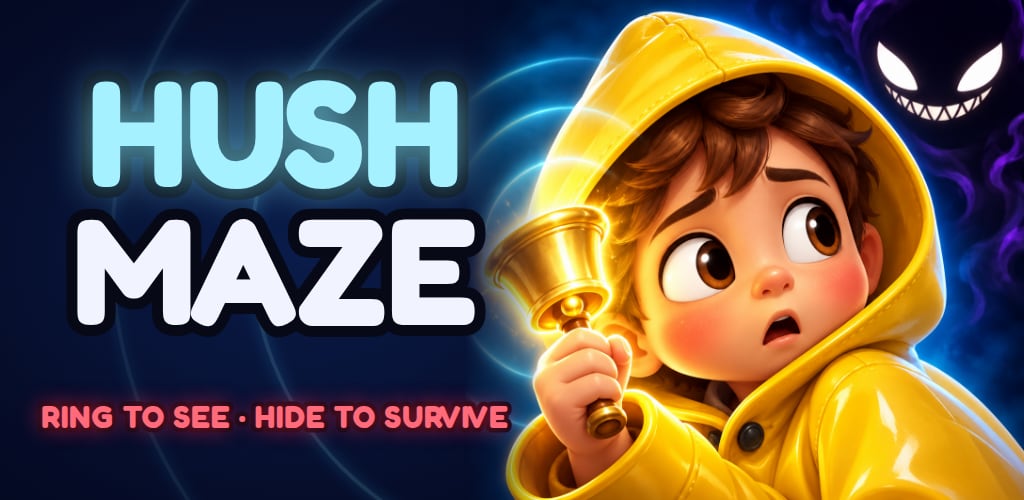 Hush Maze: a face and an emotion set the tone.
Hush Maze uses a character with a clear emotion. A frightened kid holding a bell, with a grin in the dark just behind, says "spooky but not gory" faster than any text could. The name takes one side and the face the other.
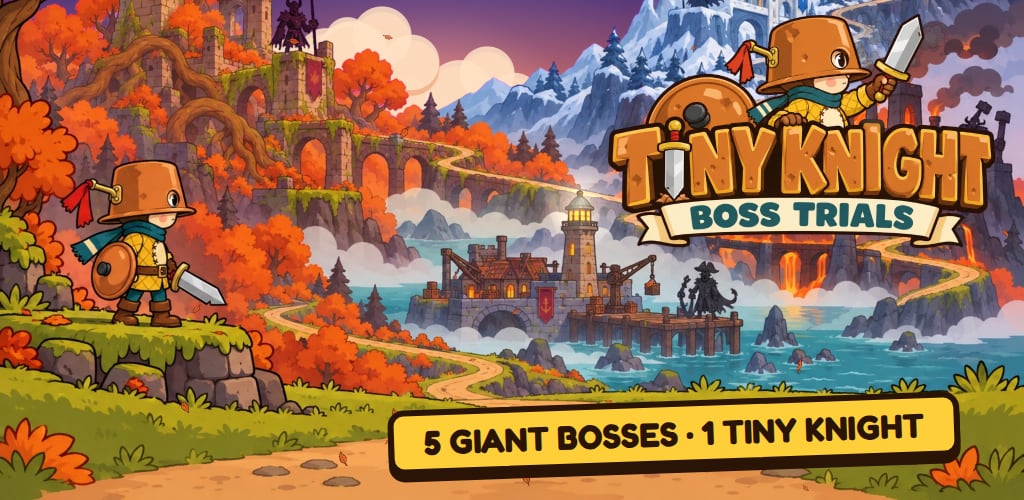 Tiny Knight: a promise with numbers in it.
Tiny Knight makes a promise you can count: 5 giant bosses, 1 tiny knight. Concrete numbers stick better than adjectives like "epic" or "amazing".
What they share: one idea per graphic, a big name, at most one short line of text, and the real world of the game.
A layout that works for most apps and games
- Start with a 1024 × 500 canvas and fill it edge to edge with a scene or color from your app.
- On one half, put your app name, big, with one line of three to six words that says what you do.
- On the other half, put your main character or a key moment. For an app, use a clean crop of your best screen, without a phone frame, showing a result: a finished budget, an edited photo, a completed plan.
- Keep the middle clear for the play button if you have a video.
- Export as a JPEG, or a PNG without transparency.
- Shrink it to about 300 px wide. If you can still read the name and tell what the app is, it works.
Checklist before you upload
- 1024 × 500 px, JPEG or 24-bit PNG, no transparency
- Name, slogan and main visual away from the edges
- Nothing important under a centered play button
- No "best", "#1", "free", "new", download counts or store badges
- No phone or tablet frames
- Readable when shrunk
- Text translated for each store listing language
- Alt text written, 140 characters at most
Any image editor will do the job: Figma, Photoshop, or Photopea, which is free and runs in the browser. Then run your graphics through our free Google Play listing preview. It checks the size and format of your icon, feature graphic and screenshots in your browser, so your files never leave your computer.
With the graphics done, the next step is the text that ranks: see how to write a Google Play app description.
Try it on your own app
ASO Tracker checks your Google Play rankings every day, finds the keywords people search and scores your store listing. Start free with 200 credits, no card needed.
Keep reading
How to Check Your App's Ranking on Google Play
Where does your app rank in Google Play search? Three ways to check, from a quick look to daily tracking, and what to do with the numbers.
November 3, 2026 · 5 min readGuide· VideoHow to Find Keywords for Your Google Play App
Find the keywords people really type on Google Play, tell the easy ones from the hard ones, and put them where they count. A free method, step by step.
November 3, 2026 · 6 min readGuideHow to Market an Indie Game on Google Play
A marketing plan for indie mobile games with a small budget: choosing a game people search for, the store page, launch week, ratings and updates.
November 3, 2026 · 5 min read