How to Check Your App's Ranking on Google Play
Where does your app rank in Google Play search? Three ways to check, from a quick look to daily tracking, and what to do with the numbers.
· 5 min read
In this guide
When someone types "maze game" into Google Play, is your maze game on the first screen, further down, or nowhere at all? That position decides how many people find you through search, and it changes every day. Here are three ways to check it, and how to read what you find.
Search ranking or top charts?
"App ranking" can mean two different things:
- Search ranking is your position in the results for one keyword, in one country: #4 for "maze game" in the US, #12 for the same search in the UK.
- Chart ranking is your place in Google Play's top charts (top free, top grossing, top paid), overall or in your category. The charts follow installs and revenue, and they're mostly out of reach for small apps.
Search rankings are the ones you can change with your title and descriptions, so the rest of this guide is about them.
Why your phone shows the wrong position
Searching on your own phone is the obvious way to check, and the least reliable. Google Play adapts results to each person: the apps you've installed, your past searches, your language and your device all change what you see. Your own app can look better placed to you than it does to a stranger.
For a fair picture, check without a signed-in account, in the country you care about.
Method 1: check by hand on the Google Play website
Open a private browser window, so you're not signed in, and go to an address like this one:
https://play.google.com/store/search?q=maze+game&c=apps&gl=US&hl=en
qis the keyword, with+between the wordsglis the country: US, GB, DE, IN, BR…hlis the language: en, de, pt…
Then count down until you find your app. It works, but it's slow: five keywords in three countries means fifteen pages to count. The website also stops at about 30 apps, so if you're not there, all you learn is that you're somewhere below #30.
Method 2: use a free rank checker
Our free app ranking checker does the counting for you:
- Paste your app's Google Play link, or its package name (like com.example.app).
- Add up to five keywords, one per line.
- Pick the country.
You get your position for each keyword, from #1 to #30, and the top 10 apps for each search. It needs no account, and you can run three checks a day.
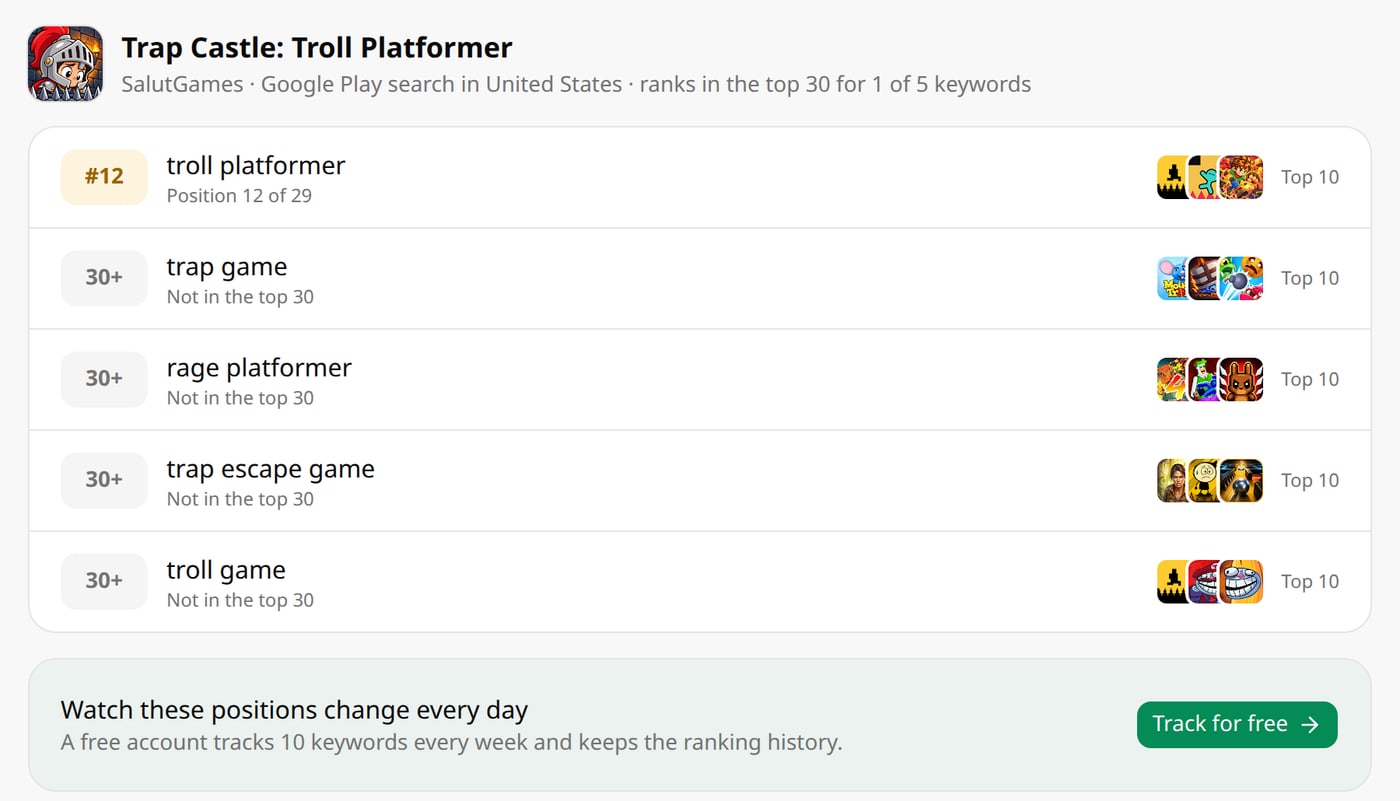 Trap Castle in the US, November 2026: #12 for troll platformer, not yet in the top 30 for the other four.
The top 10 is worth a close look. The apps above you show what Google Play considers the best match for that search, and their titles and short descriptions show which words they target. If every one of them has the keyword in its title and you don't, you've found your first change to make.
Method 3: track your rankings every day
A single check is a snapshot. Rankings move with every update you ship, every competitor's update, and every change in ratings and installs. A rank tracker checks your keywords every day and keeps the history, so you see trends instead of one number.
Here's what five weeks of daily tracking showed for Spider Escape: Maze Chase Game. "Spider escape game" and "maze chase game" stayed at the very top. "Escape maze game" kept moving up and down around #10, so it was the keyword worth working on. "Maze escape game", the same words in a different order, never reached the top 10. You can't see any of that from a single check.
In ASO Tracker, the Rank Tracker checks each keyword every day or every week. It marks your listing changes and releases on the chart, so you can see whether a change helped, and it sends you an email when a keyword enters the top 10. A free account tracks 10 keywords every week.
What to do with your rankings
| What you see | What it means | What to do |
|---|---|---|
| #1 to #3 | You own this search | Keep the keyword in your title or short description, and watch competitors that move up |
| #4 to #10 | You're on the first screen or close to it | Work on what makes people install: icon, screenshots, rating |
| #11 to #30 | People have to scroll to find you | Put the keyword in your short description or title, if it fits; these are your quickest wins |
| Not in the top 30 | You're invisible for this search | Check the top 10: if they're giants, go for a longer keyword; if not, your listing probably doesn't use the words |
| A sudden drop | Something changed | Check your last update or listing change, a competitor's update, and your recent ratings |
Where your installs really come from
Rankings tell you where you stand. Play Console tells you how much each search is worth. Its store performance reports split your visitors by traffic source (Google Play search, Google Play explore, and third-party referrals), and a search term view lists the searches that brought people to your store page.
Compare that list with the keywords you track. A search that brings visitors but isn't on your list is one to add. A tracked keyword where you rank well but that brings nobody is one to replace.
How long changes take
After you change your title or descriptions, don't judge the result the next day. New rankings often take several days to show, and a couple of weeks to settle. Change one thing at a time, write down the date, and compare two weeks before with two weeks after.
To choose what to change, see how to find keywords for your Google Play app and how to write a Google Play app description.
Try it on your own app
ASO Tracker checks your Google Play rankings every day, finds the keywords people search and scores your store listing. Start free with 200 credits, no card needed.
Keep reading
Google Play Feature Graphic: Size, Rules and Examples
The Google Play feature graphic is 1024 × 500 px, JPEG or 24-bit PNG. Where it shows, the design rules Google gives, and real examples that work.
November 3, 2026 · 5 min readGuide· VideoHow to Find Keywords for Your Google Play App
Find the keywords people really type on Google Play, tell the easy ones from the hard ones, and put them where they count. A free method, step by step.
November 3, 2026 · 6 min readGuideHow to Market an Indie Game on Google Play
A marketing plan for indie mobile games with a small budget: choosing a game people search for, the store page, launch week, ratings and updates.
November 3, 2026 · 5 min read